
Checking in
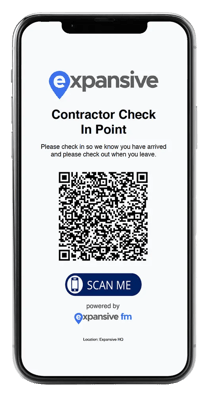
- When you arrive on site, scan the QR code poster with your device to open the Engineer App.
- Enter your company name.
- Enter your name and select it from the list if it appears.
- If your name is not listed, select Name not listed and follow the steps shown in the app.
Adding more than one engineer
-
Should users need to add another engineer at the point of check in, users can select add assistant engineer
-
Engineers can also select that they are the assistant engineer and then select who the main engineer is to add themselves to the work order
Login verification
- If your client has enabled login verification, the app may ask you to add a verification method, such as an email address or mobile number.
- Select Add verification method and choose the verification type available to you.
- Enter your details and submit the form.
- A code will be sent to your selected verification method. Enter this code in the app to continue.
- Some clients require contractor admin approval before the verification method can be used. If this applies, contractor admins will be notified and can approve the method from the contractor profile under the manage team section.
- Some clients may allow verification methods to be added but not make them mandatory. In this case, users may be able to add a verification step or skip directly to the work order.
Start work checks
- Some clients require checks to be completed before work starts.
- These checks can be general, hazard-specific, or linked to whether it is safe to proceed.
- There are three sections to complete: induction, hazard-specific questions and safe to proceed.
- To start a section, select its name and answer the yes/no questions.
- If any hazards have been pre-identified, they will be shown in the hazards section with any associated questions.
- You can also add hazards if they are identified on the day.
- The final section confirms whether it is safe to begin work. All questions in this section must be answered yes to proceed.
- If any questions are marked no, the risks and hazards must be remedied and the checks restarted before work can begin.
- The work order view screen shows the details of the work and the site where it is taking place.
- You can pause and resume time logs by selecting the manage engineers option.
- Dedicated tabs for assets and updates show any linked assets, important updates and comments.
- Further down the page, users can view additional site details, including any site documents.
- Once you have finished the work, select Check out on the work order.
- If the client has location verification enabled for checkout, you will be asked to share your location with the browser if you have not already done so.
- If validation fails, try again. If the client has enabled site access codes, you can enter the code to continue.
- If these features are not enabled, the app will skip to the next checkout steps.
- Select the appropriate resolution code, such as Service completed, Quote required, or Return visit required.
- Add any relevant visit notes or attachments.
- You can then end the visit completely or check in to another work order if there is more work to complete on the same site.
If the Engineer App does not open, does not show the correct work order, or will not let you check in, try the steps below before contacting support.
- Check your internet connection: The Engineer App is web-based, so you need a working internet connection on your phone or device. If signal is poor, try moving to an area with better reception or connecting to site Wi-Fi if available.
- Use the correct link or QR code: Make sure you have scanned the QR code for the site you are attending and that the page has fully loaded in your browser.
- Check the service request has become a work order: If the request has not been accepted and converted into a work order yet, it may not appear in the Engineer App.
- Check your company and engineer details: If your company name or engineer name is not appearing, speak to your contractor admin first so they can check your details in the contractor profile and manage team area. If it still does not appear, contact your client admin for support.
- Allow location sharing: If location verification is enabled, your browser must be allowed to access your location. If you see messages such as Location unavailable, Location unknown or Location not enabled, check your device and browser location settings, then refresh the page and try again.
- Use a site access code if available: Some clients enable site access codes as a backup when location verification cannot be completed. Ask the site contact or site manager for the code if this option is shown.
- Refresh or reopen the browser: If the page freezes or does not move to the next step, refresh the page, close and reopen the browser, or try another supported browser on your device.
- Ask for help if the issue continues: If you are still unable to check in or continue the job, contact your contractor admin or client contact. Include the client name, site, work order number, engineer name, device/browser being used and a screenshot of the issue if possible.
Full walkthrough demo:
