
In this guide you'll learn:
- How to bookmark your favourite dashboards
- Where to find your bookmarked dashboards
- When bookmarking can help improve your workflow
Why bookmark dashboards?
If you regularly access the same dashboards, bookmarking them makes them quicker to find.
Instead of searching through Collections each time you log in, you can add frequently used dashboards to your favourites and access them in just a few clicks.
This is particularly useful if you regularly monitor operational performance, compliance, contractor performance or financial reporting.
Bookmarking a dashboard
To bookmark a dashboard:
- Open the dashboard you'd like to save.
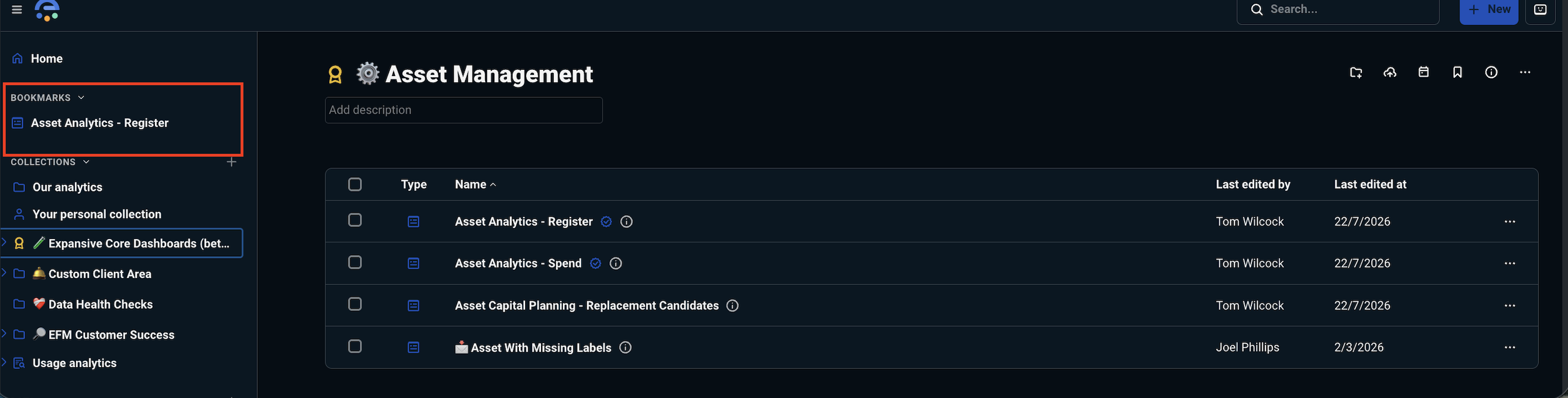
- Select the Bookmark icon.
- The dashboard will now appear in your list of favourite dashboards.

Viewing your favourite dashboards
Your bookmarked dashboards can be accessed from the Bookmarks area on the left-hand navigation.
This provides a convenient way to return to the dashboards you use most often without searching through your Collections.
Bookmarks are personal to your account and don't affect other users.
💡 Best practice
Bookmark the dashboards you use most frequently, such as your monthly operational reports or contractor performance dashboards. This makes it quicker to access the information you need every day.
⚠️ Things to watch out for
Bookmarking a dashboard doesn't create a copy of it. If the dashboard is updated by expansive, your bookmark will continue to point to the latest version.
Similarly, removing a bookmark doesn't delete the dashboard - it simply removes it from your favourites list.
