
What you'll learn
In this guide you'll learn:
- Why Official dashboards can't be edited
- How to duplicate a dashboard
- The difference between Personal and Client Collections
- How to safely customise dashboards
- Best practices for sharing dashboards with your colleagues
Why duplicate a dashboard?
Official dashboards are maintained by expansive and are regularly updated to ensure they remain accurate, consistent and useful for all customers.
For this reason, they can't be edited directly.
If you'd like to tailor a dashboard to suit your organisation's reporting requirements, simply create a copy and customise that version instead.
This means you can experiment freely while keeping the original dashboard unchanged.
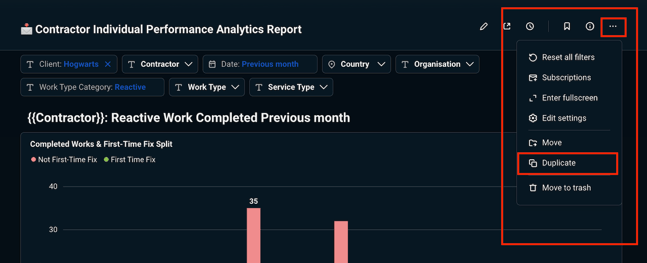
Duplicating a dashboard
To create your own version of a dashboard:
- Open the dashboard you'd like to customise.
- Select the three dots.
- Select Duplicate.
- Choose where you'd like to save the new dashboard.
- Give your dashboard a meaningful name.
- Save your copy.
Once duplicated, you can make changes without affecting the original dashboard.
💡 Best practice
Keep the original dashboard name and add a short description of your changes.
For example:
- Work Order Demand - Regional View
- Contractor Performance - Monthly Board Report
- Compliance Dashboard - London Sites
This makes it easier for colleagues to understand the purpose of each dashboard.
Choosing where to save your dashboard
When you duplicate a dashboard, you'll usually have two options:
- Personal Collection
- Client Collection
Choosing the right location is important.
Personal Collection
Dashboards saved to your Personal Collection are only visible to you.
This is the ideal place to:
- Test new ideas
- Experiment with layouts
- Build draft reports
- Create dashboards for your own use
No other users in your organisation will be able to see dashboards stored here.
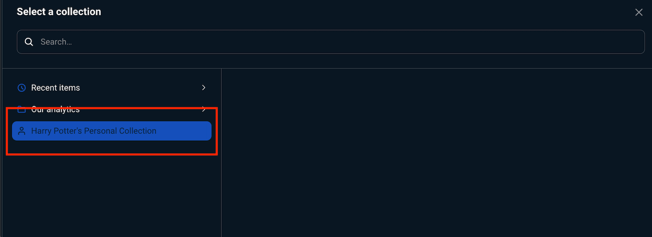
Client Collection
Dashboards saved to your Client Collection (named our analytics) are available to other authorised users within your organisation.
Use your Client Collection for:
- Shared operational dashboards
- Team reporting
- Executive reports
- Final versions of customised dashboards
This helps ensure everyone is working from the same set of reports.
Which should I choose?
| If you want to... | Save to... |
|---|---|
| Test a new dashboard | Personal Collection |
| Build a draft report | Personal Collection |
| Share a dashboard with colleagues | Client Collection |
| Create a board report | Client Collection |
| Keep a dashboard private | Personal Collection |
Customising your dashboard
Once you've duplicated a dashboard, you can tailor it to better suit your reporting needs.
Depending on your permissions, you may be able to:
- Rearrange dashboard tiles
- Remove widgets you don't need
- Change chart types
- Add new filters
- Update the dashboard layout
These changes apply only to your duplicated dashboard and won't affect the Official version.
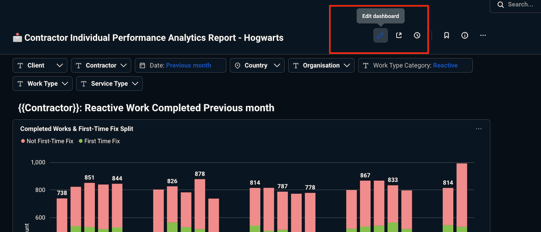
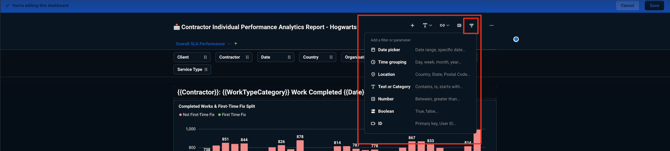
Adding filters and parameters
As well as changing the layout of a dashboard, you can also add new filters and parameters to make your dashboard more interactive.
When you enter Edit mode, you can add dashboard filters/ parameters that allow users to refine the information shown without editing the report itself.
Once added, thes can be connected to one or more reports on the dashboard, allowing a single filter to update multiple charts and tables at the same time.
💡 Best practice
Think about the questions your users are likely to ask when deciding which filters to add. For example, if colleagues regularly need to compare different sites or contractors, adding these as dashboard filters can make the dashboard much more useful.
⚠️ Things to watch out for
Adding a filter to a dashboard doesn't automatically affect every report. You'll need to connect the filter to the relevant charts and tables so that it controls the correct data.
When should I customise a dashboard?
Creating a customised dashboard is useful when you need to:
- Focus on a particular business area
- Create reports for management meetings
- Monitor specific sites or regions
- Highlight the KPIs most important to your organisation
- Combine information from multiple reports into a single view
Custom dashboards can help streamline reporting by bringing together the information that's most relevant to your team.
When shouldn't I duplicate a dashboard?
Not every reporting request needs a new dashboard.
Often, you can answer a question simply by:
- Applying different filters
- Exploring the underlying data
- Exporting the results for further analysis
💡 Best practice
Start with an Official dashboard and use filters before creating a customised version. Many reporting requirements can be met without building additional dashboards.
Things to watch out for
⚠️ Saving to the wrong collection
A common mistake is saving a dashboard to your Personal Collection when you intended to share it with your team.
If your colleagues can't find your dashboard, check where it has been saved first.
⚠️ Editing the wrong dashboard
Always make sure you're working on a duplicated dashboard before making changes.
Official dashboards are designed to provide a trusted reporting baseline for all customers.
⚠️ Creating unnecessary duplicates
If a dashboard only needs different filters, there's usually no need to create another copy.
Keeping the number of dashboards to a minimum makes them easier to maintain and helps users find the reports they need.
